 Free Shipping Over $50
  888-432-8363


 Obituary/Programs
 No-Fold Memorial Programs
 4 Page Funeral Programs
 8 Page Memorial Programs
 12 Page Funeral Programs
 16 Page Funeral Programs
 20 Page Funeral Programs
 Tri-Fold Funeral Programs
 Complete Memorial Packages
 Cards & Bookmarks
 Saint Prayer Cards
 Folded Memorial Cards
 Folded Holy Cards
 Memorial Bookmarks
 Thank You Cards
 Share-A-Memory Cards
 Memorial Magnets
 Memorial Posters
 Guest Books
 Slide Shows
 Memorial Fans
 Death Announcements
 Take Away Keepsakes
 Church Products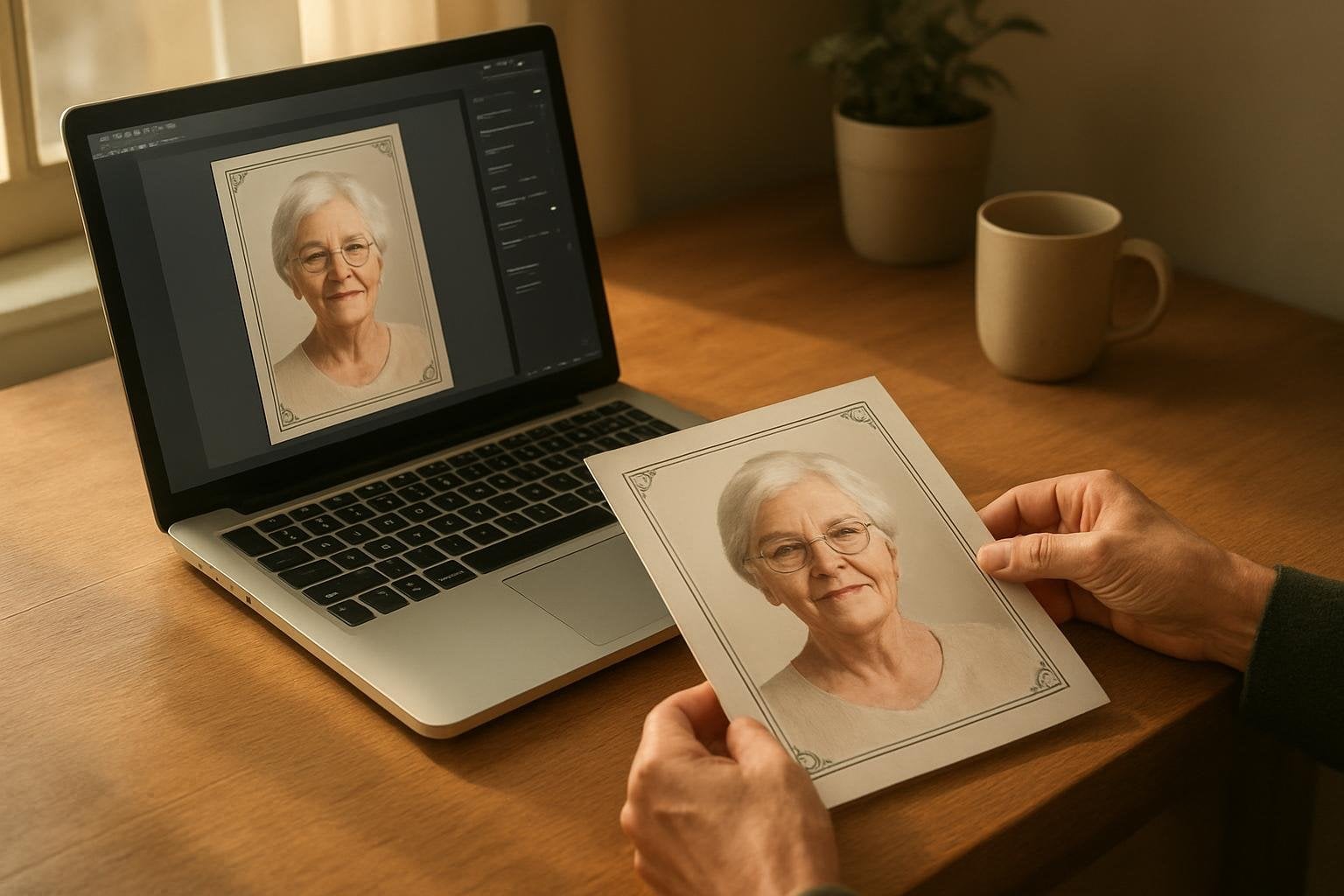
Introduction: Navigating Photo Edits During a Time of Loss
At DisciplePress, we understand that planning a funeral or memorial service is a deeply emotional journey. Creating a loving tribute—like a funeral program or memorial card—often means gathering precious photos that capture the spirit and memories of someone dear. During this time, even simple tasks such as editing a photo can feel overwhelming, especially when you want every detail to honor your loved one with care.
But you are not alone in this process. Many families, funeral directors, and community members find themselves seeking ways to edit funeral program photos online free, striving to make each image as beautiful and meaningful as possible. Whether you’re preparing a bi-fold program, an 8-page booklet, or a set of prayer cards, ensuring your photos are clear, bright, and properly sized is crucial for a heartfelt presentation.
This comprehensive guide is designed to gently lead you through the best free online photo editing tools. We’ll explore user-friendly platforms like Canva, Fotor, and Pixlr, offering step-by-step advice on cropping, enhancing, and preparing your images—even if you have no design experience. From adjusting lighting to removing minor blemishes, the guidance here will help you include high-quality images in funeral programs, memorial bookmarks, and celebration of life materials.
Throughout this article, we promise to provide practical tips, real-world examples, and reassurance at every step. We know how important these lasting printed memories are, and our goal is to make this part of your journey a little easier, more manageable, and filled with dignity. Let’s explore together how you can edit funeral program photos online free, with compassion and confidence.
Why Photo Quality Matters in Funeral and Memorial Print Materials
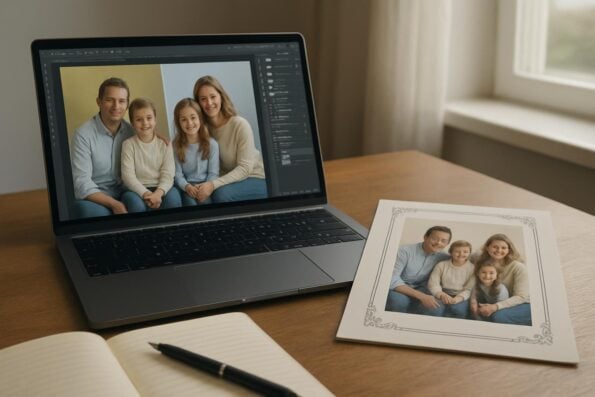
Choosing the right photos for a funeral program, whether it’s a classic bi-fold, a tri-fold, or a detailed 12-page booklet, is about more than aesthetics. These images often become treasured keepsakes for family and friends. When photos are clear, well-lit, and thoughtfully enhanced, they invite everyone to remember, reflect, and celebrate the life of a loved one more vividly.
At DisciplePress, we understand the importance of honoring your loved one’s memory. We offer Memorial Bookmarks, Funeral Programs and Prayer Cards to help you create meaningful tributes.
Low-quality or poorly edited photos can sometimes detract from the intention behind a beautifully crafted program or memorial card. Fuzzy, dark, or awkwardly cropped images may not evoke the warmth you wish to convey. Editing your photos—even with free, online tools—helps ensure that each image is shown at its best, preserving dignity and honoring legacy.
For families using DisciplePress products, such as memorial bookmarks, prayer cards, or celebration of life programs, image clarity influences the overall look and feel of the printed piece. A well-edited photo can bring comfort to those in mourning, sparking fond memories and meaningful conversations during the service and beyond. This is especially true for larger program formats, such as 16-page or 20-page booklets, where photos often take center stage.
We encourage you to consider how even small improvements—like brightening a dark photo or gently cropping out distractions—can make a significant difference. Remember, there’s no need for professional design skills or expensive software; the free online tools we’ll discuss are accessible and intuitive, ready to help you create something beautiful and lasting.
Overview of Free Online Photo Editing Tools for Funeral Programs
When you’re ready to edit funeral program photos online free, knowing which tools to trust can save time and ease anxiety. The most widely recommended platforms—Canva, Fotor, and Pixlr—stand out for their user-friendly interfaces, helpful templates, and generous free features. Each tool supports basic tasks like cropping, resizing, adjusting brightness, and enhancing color, all without the need to download software.
Canva is especially popular for those designing entire programs, such as bi-fold or 8-page formats, thanks to its drag-and-drop editing and built-in templates. Fotor offers a straightforward approach to photo enhancement, making it easy to fix lighting issues or sharpen a cherished image for use on memorial cards or bookmarks. Pixlr, meanwhile, is a favorite for families and funeral directors who want both quick fixes and more advanced options, such as retouching or background removal.
Each platform works entirely online, which means you can access them from any device—computer, tablet, or even smartphone—without worrying about technical compatibility. For time-sensitive projects, like rush orders or same-day printing through DisciplePress, using these tools can help you quickly prepare your images for upload, ensuring your programs or prayer cards look their very best.
As you read further, we’ll guide you step by step through using each platform, offering practical tips, real-world examples, and reassurance for those new to photo editing. Whether your goal is a single memorial card or a detailed program booklet, these free tools are here to support you every step of the way.
Getting Started: Cropping and Resizing Photos for Memorial Print Materials
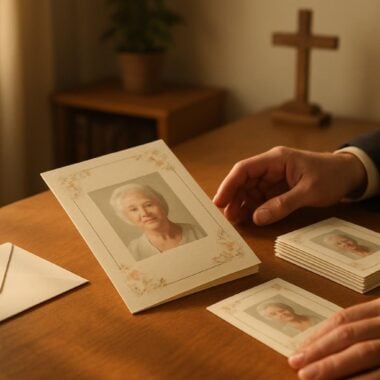
One of the first steps in preparing a photo for a funeral program or memorial card is cropping and resizing. This ensures your image fits beautifully in the chosen layout, whether it’s a compact prayer card, a memorial bookmark, or a larger 12-page or 16-page booklet. Cropping can remove distracting backgrounds, while resizing ensures the photo prints crisp and clear—never stretched or pixelated.
Every memorial should reflect the unique life and legacy of your loved one. We offer Prayer Cards, Memorial Cards and Obituary Templates to help you create meaningful tributes.
With Canva, simply upload your image, click on it, and use the crop handles to focus on the loved one’s face or an important detail. You can also adjust the photo’s size to fit within a frame or template. Fotor and Pixlr provide similar tools: look for the “Crop” or “Resize” buttons in the main menu, and always preview your image at the intended print size before saving.
A helpful tip: When cropping, leave a small margin around faces or key features, so nothing is lost during printing or trimming. For DisciplePress bi-fold programs or tri-fold formats, check the recommended dimensions before finalizing your edit. If you’re not sure about the best size or aspect ratio, our custom design services team is always available to offer gentle guidance.
Remember, cropping and resizing are not about perfection—they’re about creating a photo that feels intentional and lovingly chosen. Take your time, experiment with different crops, and don’t hesitate to reach out to us if you’re facing challenges. Your efforts will help ensure the photo becomes a cherished part of the printed tribute.
Enhancing Photo Quality: Brightness, Contrast, and Color Adjustments
After cropping and resizing, the next step in editing funeral program photos online free is enhancing their quality through adjustments to brightness, contrast, and color. Sometimes, treasured photos may be slightly dark or faded, especially if they’re older or taken in low light. Thankfully, online tools like Fotor, Canva, and Pixlr make these corrections simple and accessible.
Begin by opening your photo in the chosen editor and locating the “Adjust” or “Edit” menu. Increase brightness gently to bring out facial features, and fine-tune contrast to ensure details stand out. With color adjustments, aim for a natural, lifelike tone; avoid overly vibrant or unnatural hues, as subtlety is often more comforting and respectful in memorial prints.
For example, if you’re preparing an 8-page program with DisciplePress and using a photo from a family album, you might notice a yellowish tint or shadows. With Fotor, a single click on the “Auto Enhance” button can make a significant improvement. In Canva and Pixlr, sliders allow you to control each setting—experiment carefully, and compare the edited version with the original to ensure you’re happy with the result.
If you’re unsure, ask another family member or friend for feedback, or reach out to our team for advice. For rush orders or same-day printing, making quick but thoughtful adjustments ensures your memorial cards, bookmarks, or programs are both beautiful and ready on time. Remember, these small enhancements can lift the spirit of your tribute and help everyone remember your loved one with warmth and clarity.
Removing Imperfections: Gentle Retouching and Background Edits
Sometimes, even our favorite photos have small imperfections—a distracting background, a blemish, or an unwanted object in the frame. Free online editors like Pixlr and Fotor offer gentle retouching tools that can help you refine images for funeral programs, memorial bookmarks, or prayer cards, all while preserving authenticity and respect.
In Pixlr, look for the “Retouch” or “Heal” tool. This allows you to softly brush away dust spots or minor marks, especially useful for scanned older photos. Fotor provides a similar “Blemish Fix” feature, which can subtly minimize distractions without erasing the unique character of the image. When editing, always use the smallest brush size and make incremental changes, so the photo remains true to your loved one’s appearance.
For background edits, Canva’s “Background Remover” tool (available with a free trial) can help isolate the subject if the surroundings feel busy or out of place. This can be particularly helpful for creating a serene portrait on a bi-fold program or a simple, elegant memorial card. However, use background removal sparingly; sometimes, the setting itself is part of the memory.
If you’re preparing a large-format program, such as a 16-page or 20-page booklet, consider whether each photo needs retouching or if natural imperfections add to the story. As always, our custom design services are here to support you with more advanced edits, and we encourage you to reach out if you feel uncertain about making changes yourself. The goal is to create something that feels both polished and heartfelt.
Adding Text, Frames, and Gentle Effects for Personalization
Once your photo is cropped, enhanced, and retouched, you may wish to personalize it further with text, frames, or gentle effects. These touches can help unify the design of your funeral program, memorial card, or celebration of life booklet, making each keepsake uniquely meaningful. Free online tools like Canva excel at this, offering hundreds of tasteful options for non-designers.
To add a name, date, or short memorial phrase, simply select the “Text” tool in Canva or Fotor and choose a soft, easy-to-read font. Position your words away from faces, and keep the wording simple—such as “In Loving Memory of Sarah Johnson, 1932–2024.” If you’re designing a themed program, like an angel or nature motif, consider using matching graphic elements, which many tools offer for free.
Frames and borders can give a photo a gentle finish, especially for prayer cards or bookmarks. In Pixlr, you’ll find decorative frame options that can be added with a single click. Canva and Fotor allow for subtle drop shadows or vignette effects that draw the eye to the main subject without overwhelming the image.
Be mindful not to overdecorate; the most touching tributes are often the simplest. If you’re unsure which effects suit the tone of your service—whether it’s a traditional funeral program or a celebration of life—browse the DisciplePress design gallery for inspiration, or ask our team for gentle suggestions. Personal touches, when added thoughtfully, can transform a photo into a cherished memory for years to come.
Saving and Exporting Photos for Printing with DisciplePress
Once your photo edits are complete, saving and exporting your images in the correct format is essential for high-quality printing. Most free online editors, including Canva, Pixlr, and Fotor, allow you to download your edited photo as a JPEG or PNG file—both widely accepted for printing funeral programs, memorial cards, and bookmarks.
Before downloading, double-check the image resolution. For most DisciplePress products, such as bi-fold or 8-page programs, a resolution of 300 DPI (dots per inch) ensures your photo prints crisp and clear. If you’re unsure how to adjust this, many platforms will automatically export at a high resolution, or you can select “High Quality” or “Print” settings in the download menu. Avoid compressing images too much, as this can cause blurriness.
If you’re preparing multiple items—like a memorial bookmark, prayer card, and program—organize your files with clear names (for example, “Dad_Portrait_Booklet.jpg”) to keep track of which photo goes with which product. For families facing tight timelines, prompt saving and organization can make rush orders or same-day printing with DisciplePress much smoother.
Should you have any concerns about file types or print quality, don’t hesitate to contact us. Our team is happy to review your images and make gentle recommendations, ensuring your printed materials reflect your loved one’s memory with grace. With proper saving and exporting, your heartfelt designs will be ready for upload and printing, bringing comfort and connection to all who attend the service.
Tips for Non-Designers: Overcoming Challenges and Building Confidence
Editing photos for a memorial can feel intimidating, especially if you have little experience with design software. Take heart—today’s free online tools are built for everyday people, not just professionals. Start with one photo at a time and allow yourself to explore the editor’s features, remembering that every step you take is a loving act of remembrance.
If you make a mistake, use the “Undo” button or revert to your original photo. Don’t be afraid to experiment with different crops, brightness settings, or gentle effects. For those preparing larger projects—like 16-page or 20-page funeral programs—focus on one image per session to avoid overwhelm. And remember, perfection is not the goal; authenticity and love always shine through.
Ask a friend or family member to review your edits, or reach out to our custom design services if you need extra support. Many users also find comfort in using the design gallery or obituary templates at DisciplePress for inspiration. These resources can help you see what’s possible and spark ideas for your own tribute, whether for a traditional program, a celebration of life booklet, or a set of memorial cards.
Most importantly, be gentle with yourself. The process of preparing photos can stir up feelings and memories, both joyful and bittersweet. Take breaks as needed, and know that every adjustment you make—no matter how small—contributes to a lasting legacy. We’re here to help you every step of the way, offering encouragement, expertise, and a compassionate ear whenever you need it.
Related Articles
Conclusion: Finding Comfort and Support as You Prepare Your Tribute
As you navigate the process of editing funeral program photos online free, remember that you are honoring your loved one in a deeply personal way. Each photo you choose, enhance, and prepare becomes a piece of their story—a comfort to those who gather and a keepsake for years to come. The tools and steps we’ve shared are here to lighten your load, helping you create memorial bookmarks, prayer cards, or detailed programs with confidence and grace.
If you find yourself unsure or in need of advice, know that DisciplePress offers not only custom design services but also a supportive team ready to answer your questions. Our experience with bi-fold programs, 8-page booklets, and a full range of memorial products ensures your tribute is both beautiful and timely, whether you need rush orders or are planning well in advance.
We encourage you to take the photo editing journey one step at a time, knowing that every effort you make is a testament to love and remembrance. Should you wish for further guidance, explore our design gallery, obituary templates, or reach out directly for help with file preparation and printing advice. Our turnaround time and same-day printing options are designed to meet your needs, no matter the schedule.
Above all, we hope this guide brings reassurance, clarity, and a sense of partnership as you prepare this meaningful tribute. At DisciplePress, we are honored to walk beside you, helping transform memories into lasting keepsakes that celebrate a life well-lived. Please contact us whenever you need—your journey matters deeply to us, and we are here to help.
Learn more about DisciplePress and our commitment to serving families. Browse our design gallery for inspiration. For personalized assistance, please contact us.