 Free Shipping Over $50
  888-432-8363


 Obituary/Programs
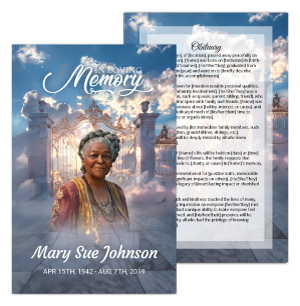 No-Fold Memorial Programs
 4 Page Funeral Programs
 8 Page Memorial Programs
 12 Page Funeral Programs
 16 Page Funeral Programs
 20 Page Funeral Programs
 Tri-Fold Funeral Programs
 Complete Memorial Packages
 Cards & Bookmarks
 Saint Prayer Cards
 Folded Memorial Cards
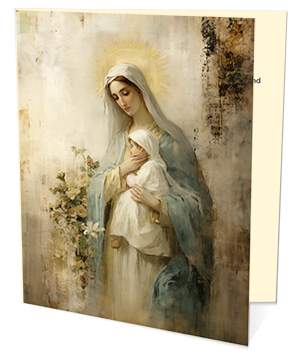 Folded Holy Cards
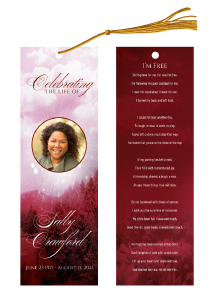 Memorial Bookmarks
 Thank You Cards
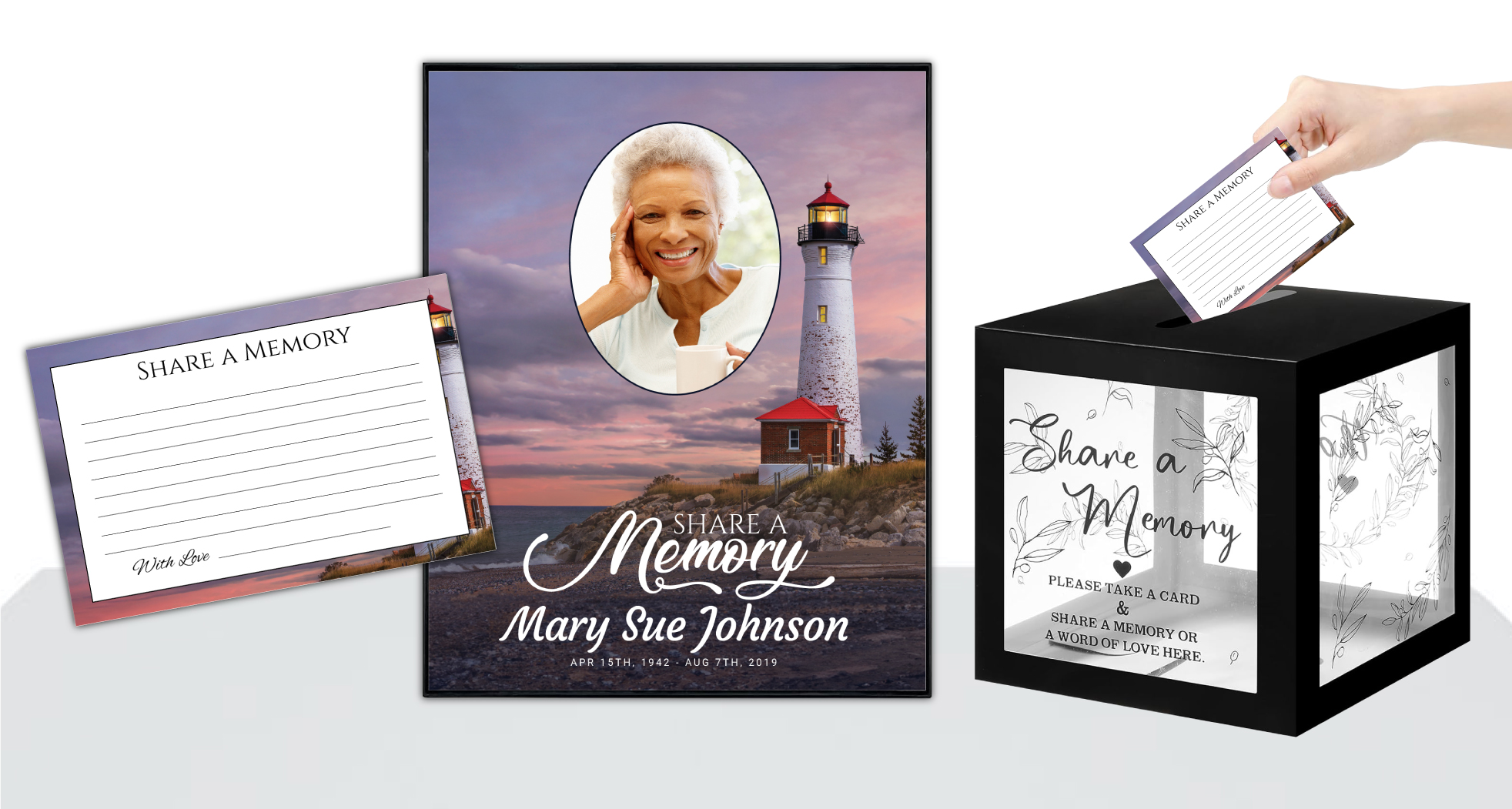 Share-A-Memory Cards
 Memorial Magnets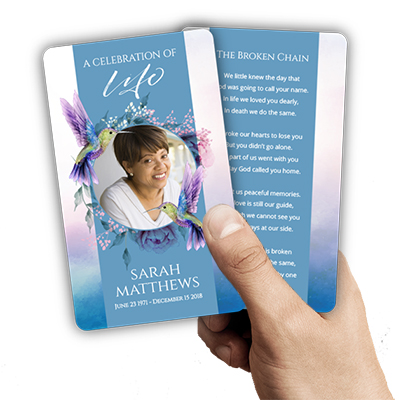
 Memorial Posters
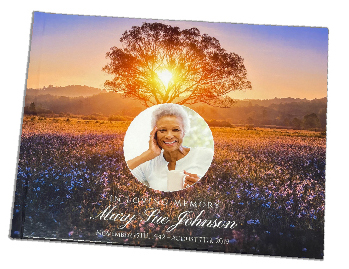 Guest Books
 Slide Shows
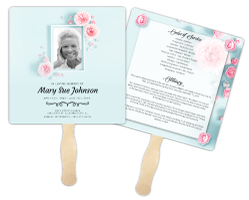 Memorial Fans
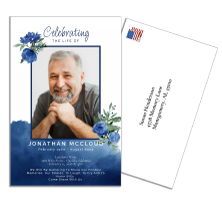 Death Announcements
 Take Away Keepsakes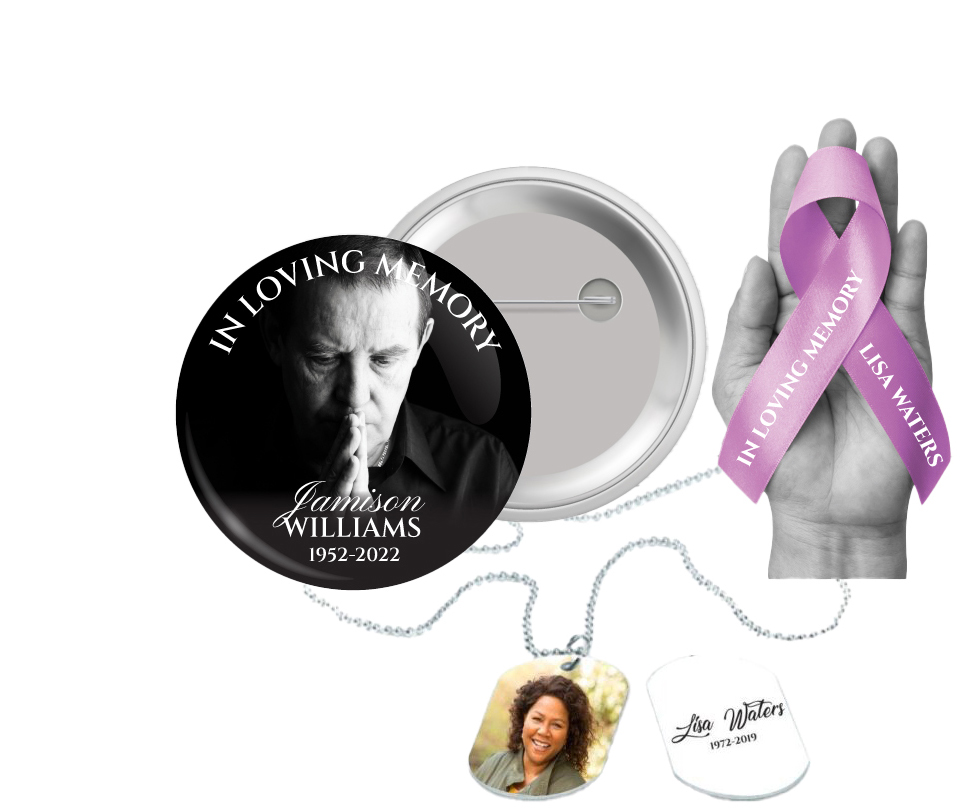
 Church Products
Supporting You Through Every Step: Introduction
In times of loss, families and loved ones often find themselves taking on many unfamiliar tasks, from planning a memorial service to creating meaningful keepsakes. We understand how overwhelming this period can be—emotions run high, time is precious, and every detail feels significant. If you have turned to tools like ChatGPT, Gemini, Copilot, or Canva AI to create images or designs for a loved one’s funeral program, memorial card, or other commemorative materials, know that you’re not alone. Many families are embracing these technologies for their accessibility and ease of use, especially when time and resources are limited.
At DisciplePress, we recognize and respect the many paths families take to honor those they’ve lost. Whether you have designed a beautiful tribute yourself or collaborated online with friends and family, your creation deserves to be handled with care. One of the most common next steps is turning that digital image into a print-ready PDF—an essential requirement for high-quality printing, whether you want bi-fold programs, memorial cards, or memorial bookmarks as lasting keepsakes.
This article is here to gently guide you, step by step, through the process of saving your ChatGPT or AI-generated image as a print-ready PDF. We’ll cover everything you need to know, from downloading the original image to making sure it looks its best in print. We’ll provide practical advice for both computer and phone users, offer real-world examples, and explain how to upload your finished file to DisciplePress for timely, high-quality printing.
We want you to feel supported and empowered, even in the midst of grief. Whether you’re creating a single prayer card, a full funeral program, or a set of bookmarks as mementos, our goal is to help you create something beautiful and enduring. Let’s walk through this process together, one gentle step at a time.
How to Save a ChatGPT Image as a Print-Ready PDF: The Essentials
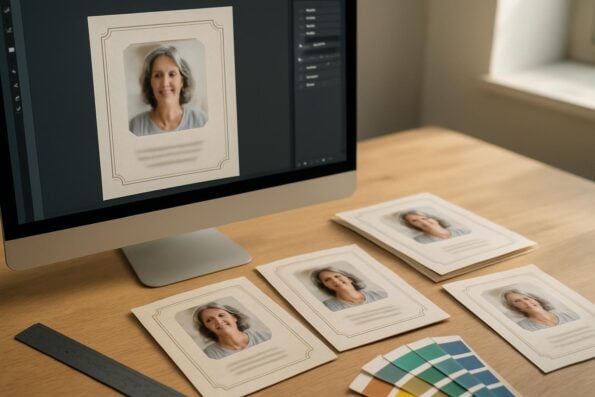
For those who need a clear, straightforward answer: To save a ChatGPT or other AI-generated image as a print-ready PDF, download the original image file (not a screenshot), check its resolution and size, upscale it if needed, place it on a document sized for your print product (e.g., bi-fold program or memorial card) using a tool like Canva, Word, or Google Docs, add a bleed if required, and export the document as a PDF. The result will be ready for professional printing at DisciplePress.
Let’s break this down into actionable steps. First, ensure you have the original, high-resolution image file from your AI tool—usually a PNG or JPEG. Screenshots are often too low in quality for print, so always use the direct download option. Next, check the image’s dimensions in pixels; for best results, aim for at least 300 DPI (dots per inch) at the printed size. If you’re creating a memorial bookmark or a funeral program, it’s important that your image is crisp and clear when printed.
If the image is too small, consider using an online image upscaler or a tool like Canva’s built-in image tools to increase its resolution. Then, use a design platform (Canva, Word, Google Docs, or Preview on Mac) to position your image on a correctly sized page. Add necessary bleed (extra margin for trimming), especially for full-color designs. Finally, export your file as a PDF, ensuring all settings are optimized for print.
For those looking to print at DisciplePress, the next steps are simple: visit our Upload Print-Ready Artwork page, pick your desired product (such as bi-fold programs or memorial cards), select “I will upload print-ready artwork,” and upload your PDF. Orders placed by 12pm CST print and ship the same day. We offer free FedEx 2-day shipping for orders over $50, and overnight shipping options for urgent needs.
Step 1: Downloading the Original AI Image (Not a Screenshot)
The first and most critical step is to ensure you’re working from the highest quality image possible. AI-generated images from ChatGPT or similar tools typically offer a direct download option. Avoid taking a screenshot of the image, as screenshots are often much lower in resolution and not suitable for sharp, professional printing—especially for keepsakes like memorial bookmarks or memorial cards.
On a computer, right-click the image and select “Save image as…” to download the full-resolution file. On a phone or tablet, tap and hold the image, then choose “Download image” or “Save to Photos.” Make sure you’re saving a file format like PNG or JPEG—not a webp or other less common format. These standard formats are easiest to work with in most design tools and print services.
If you encounter any trouble downloading the original file, check the AI tool’s export or download options. Many platforms, including Canva and Copilot, allow you to specify the image size and format before downloading. Always choose the largest available size, as this will give you the most flexibility during the design and print process.
For families working collaboratively, be sure everyone is sharing the original file, not a screenshot pasted into chat or email. If you’re unsure, look at the file size—originals are typically several hundred kilobytes or more, while screenshots tend to be smaller and lower in quality. This extra care ensures your loved one’s tribute will be as beautiful as you envision.
Tip: If you need help with this step, our team at DisciplePress is always available to provide gentle guidance. We’re here to help you create the perfect print-ready file for your funeral programs, memorial cards, or any other memorial products.
Step 2: Checking Image Size and Resolution for Print
Once you have the original AI-generated image, it’s important to ensure it’s large enough for high-quality printing. Print quality is measured in DPI (dots per inch), with 300 DPI being the standard for professional results. For example, if you plan to print a 5×7 inch memorial card, your image should be at least 1500×2100 pixels (5 x 300 by 7 x 300).
To check your image’s size, right-click the file on your computer and select “Properties” (Windows) or “Get Info” (Mac). On a phone, open the image in your gallery and look for size or details. Compare the pixel dimensions to the print size you need. For larger items like 8-page or 12-page funeral programs, even higher resolutions are beneficial to maintain sharpness in photos and artwork.
If the image is smaller than needed, don’t worry—tools like Canva, Photoshop, or dedicated online upscaling services can enlarge your image with minimal loss of quality. Be sure to preview the upscaled image at 100% zoom to check for any fuzziness or blurring. This is especially important for memorial keepsakes like bookmarks or prayer cards, where every detail matters.
For products with text, such as bi-fold programs or memorial cards, ensure the text remains crisp and legible. If your design includes both images and text, you may wish to recreate the text in your layout tool for the sharpest results.
Tip: If you’re unsure whether your image is large enough, upload it to the product page on DisciplePress, and we’ll help you assess its suitability for your chosen format—be it a celebration of life program, prayer card, or memorial bookmark.
Step 3: Upscaling and Enhancing Your Image for Print
Sometimes, even the best AI-generated images are smaller than we’d like for print. If this happens, you have options. Online upscalers such as Waifu2x, Let’s Enhance, or Canva’s built-in tools can enlarge your image while preserving detail. This is especially helpful when preparing images for larger items like 8-page funeral programs or memorial posters.
To upscale, simply upload your image to the chosen tool, select your desired output size (based on the print dimensions), and download the enhanced file. Be sure to review the result carefully, checking for any blurriness or artifacts. If you’re using Canva, you can drag your image onto a blank canvas and use the “Resize” and “Enhance” features. Many families find Canva’s interface intuitive, especially when working with photos for memorial cards or bookmarks.
For images with text or delicate details, enlarging too much can cause blurring. In such cases, consider placing the image as a background and recreating the text in your layout tool to ensure crispness. This technique works well for products like prayer cards, thank you cards, or folded memorial cards, where clarity is essential.
If you’re working with multiple images, such as for a bi-fold or tri-fold program, upscale each one individually before adding them to your document. This ensures consistent quality across the entire piece. Remember, every detail in your tribute matters—these keepsakes will be cherished for years to come.
Tip: If you need further assistance, DisciplePress offers custom design services that can help with enhancing images, laying out text, and preparing files for print. We’re here to make the process as smooth as possible.
Step 4: Placing Your Image in a Correctly Sized Document
Once your image is ready, the next step is to place it on a correctly sized page for your chosen product. For memorial cards, the common size is 2.5 x 4.25 inches; for bi-fold programs, it’s typically 8.5 x 11 inches folded in half. Booklets, bookmarks, and other keepsakes each have their own standard dimensions. Check the DisciplePress product page for recommended sizes—this ensures your design fits perfectly and prints without unexpected cropping.
Use a layout tool you’re comfortable with—Canva, Google Docs, Microsoft Word, or Preview (on Mac). Create a new document, set the page size to your desired print dimensions, and add your image. Drag and resize it to fill the page or fit within a border, depending on your design preference. For full-bleed designs (color or images going to the edge), be sure to extend the image slightly beyond the page edge to allow for trimming.
If you’re adding text (names, dates, poems, or Bible verses), use large, clear fonts and high-contrast colors. For inspiration, you can explore our Bible Verses Collection or Funeral Poems Collection for meaningful quotes. Position text thoughtfully, leaving enough space for margins and fold lines on programs or booklets.
For families creating multi-page programs (8-page, 12-page, 16-page, or 20-page), lay out each page in sequence, ensuring images and text are clear and consistent throughout. If you’re unsure about margins or page setup, our Funeral Program Types guide provides detailed templates and advice for every program format.
Tip: Save your work frequently, and preview your document in “print view” to get a sense of how it will look on paper. This extra step can help catch any alignment or cropping issues before you export your PDF.
Step 5: Adding Bleed and Preparing for Professional Printing
If your design includes color or images that extend to the edge of the page, adding a “bleed” is essential for a professional finish. Bleed is a small margin (usually 0.125 inches) added around your document’s edges, ensuring that when your cards or programs are trimmed, there are no unprinted borders. This step is especially important for products like memorial bookmarks, full-color funeral programs, and large memorial cards.
In Canva, you can turn on bleed guides in the “File” menu. Extend your background image or color box beyond the bleed line to ensure complete coverage. In Word, adjust your page size slightly larger than the final cut size, then position your image or color area to fill the space. On Google Docs, use the “Page Setup” feature to set custom margins and ensure your design extends beyond the printable area.
When exporting your document as a PDF, double-check that your print settings include bleed if possible. Some tools, like Adobe Acrobat or Canva Pro, allow you to specify “Export with bleed.” For those working in simpler tools, add extra margin to your image manually by increasing the canvas size before exporting.
Remember, bleed is not just a technical detail—it’s what gives your printed memorial cards, programs, and bookmarks their polished, professional appearance. If you are creating a folded or booklet program, leave extra space at the fold lines for easy reading and assembly.
Tip: If you’re unsure how to add bleed, our custom design services at DisciplePress can help finalize your file, ensuring it’s truly print-ready for any of our memorial products.
Step 6: Exporting as a Print-Ready PDF
With your image and design in place, it’s time to export your work as a print-ready PDF. This format preserves your layout, colors, and fonts exactly as intended, making it the industry standard for professional printing. In Canva, click “Download,” choose “PDF Print,” and select the highest quality settings. In Word or Google Docs, use “File > Save As” or “Download As > PDF.” Ensure all fonts are embedded and images are at full resolution.
Before exporting, double-check that your document size matches your chosen print product—whether it’s a bi-fold program, memorial card, or bookmark. Preview your PDF using a viewer like Adobe Acrobat, scrolling through each page to confirm everything aligns correctly. Pay special attention to text placement, image clarity, and bleed areas.
For multi-page documents like 8-page or 12-page programs, export the entire file as a single PDF, with each page in order. If your print product requires specific page layouts (such as booklet formatting), consult our Funeral Program Types guide or reach out for assistance. We want your printed materials to be flawless in every way.
Tip: Name your PDF clearly (e.g., “Smith-Funeral-Program.pdf”) to avoid confusion during upload. Keep a backup copy in a safe place, so you can easily make updates or share with family members if needed.
DisciplePress accepts print-ready PDFs for all our products, including memorial bookmarks, memorial cards, and the full range of funeral program formats.
Step 7: Uploading Your Print-Ready PDF to DisciplePress
With your PDF prepared, you’re ready to print your tribute with care and confidence. Visit our Upload Print-Ready Artwork page, where you’ll find a step-by-step process for ordering your chosen product. Select the memorial item you wish to print—bi-fold programs, memorial cards, bookmarks, or any other keepsake—and choose the “I will upload print-ready artwork” option from the dropdown menu.
Upload your PDF file, ensuring it matches the product specifications. If you have any concerns about sizing, layout, or bleed, our team reviews each file for quality and will reach out if adjustments are needed. We understand the importance of timing during this difficult period, so we offer same-day printing for orders placed by 12pm CST, and free FedEx 2-day shipping on orders over $50. Overnight shipping is also available for urgent needs.
After uploading, you’ll be able to preview your order, select paper types and finishes, and add any special instructions. Our goal is to make the process as smooth and reassuring as possible. If you’re unsure which format best suits your needs, consider exploring our Funeral Program Types or consult with our support team for personalized recommendations.
Tip: Save your order confirmation and tracking information. If you need additional copies, simply log in to your DisciplePress account and reorder with ease. Your print-ready PDF can be used for future memorial events, thank you cards, or as cherished keepsakes for years to come.
We take pride in handling every order with compassion and precision, ensuring your loved one’s memory is honored just as you envision.
Making the Process Easier: DisciplePress Support and Ready-Made Options
We know that, for many families, the process of creating and preparing memorial materials can feel overwhelming—especially when using new technology or working under time constraints. That’s why, in addition to supporting DIY designs, DisciplePress offers a wide range of ready-made templates and full custom design services. If at any point you find the steps above to be too technical or time-consuming, our team is here to help with warmth and understanding.
You can choose from our vast selection of pre-designed bi-fold programs, memorial cards, and memorial bookmarks, each of which can be personalized with your loved one’s name, photo, and favorite scripture or poem. These options are ideal for families who want a beautiful, professional result with minimal stress. Our templates are crafted with care, reflecting a variety of faith-based, angel, and nature themes to suit every tradition and personality.
For those who wish to blend their AI-generated images with our templates, simply upload your artwork as part of the customization process. Our design team can help integrate your creation, ensuring it fits perfectly within the chosen product’s dimensions and style. This blend of personal expression and professional layout is a meaningful way to honor your loved one’s unique story.
We also provide resources to help with every aspect of memorial planning, from obituary writing to choosing appropriate Bible verses and funeral poems. If you feel uncertain or overwhelmed at any point, please contact us. Our compassionate team is here to listen, advise, and support you every step of the way.
Tip: If you’re facing a tight deadline, ask about our rush orders and same-day printing options. We’re committed to delivering quality products when you need them most, without sacrificing care or attention to detail.
Related Articles
Conclusion: Moving Forward with Confidence and Compassion
Preparing a print-ready PDF from a ChatGPT or AI-generated image may seem daunting at first, especially during a period of grief. Yet, by following these gentle steps—downloading the original image, checking its size, upscaling if needed, placing it in a properly sized document, adding bleed, and exporting as a PDF—you can create a beautiful, lasting tribute worthy of your loved one’s memory. The process, while technical in parts, is a loving act of remembrance and care.
At DisciplePress, we are honored to serve families, funeral directors, and community members who trust us with these important moments. Whether you choose to upload your own print-ready artwork or select from our curated templates for funeral programs, memorial cards, or memorial bookmarks, know that your order will be handled with precision, respect, and empathy.
We encourage you to reach out if you have questions at any stage of the process. Our team is here to guide you, review your print files, and ensure that every detail is just right. Take comfort in knowing that, with our same-day printing and compassionate support, your materials will arrive on time and meet your expectations.
As you move forward, remember that every tribute—no matter how simple or elaborate—is a cherished gift for everyone who loved and remembers. We are here to support you in honoring your loved one’s legacy with dignity, beauty, and heartfelt care.
If you’re ready, you can begin by visiting our Upload Print-Ready Artwork page. And if you need a helping hand, please don’t hesitate to contact us. Your journey is important, and we are grateful to walk alongside you.